Dealer Admin allows you to remotely update your systems and keypads. This section explains how to perform a system remote update, a bulk remote update, and a keypad update, as well as how to understand and troubleshoot error messages that may appear if an update fails.
Refer to the following information:
Perform a System Remote Update
To perform a system remote update, ensure the system is connected to Dealer Admin.
Note: For XT30/XT50 systems and Com Series Communicators, firmware Version 123 or higher and hardware level M or higher is required to perform a system remote update.
Complete the following steps to perform a system remote update:
-
Log in to Dealer Admin (dealer.securecomwireless.com).
-
Go to Customers, then select the System Name you want to update.
-
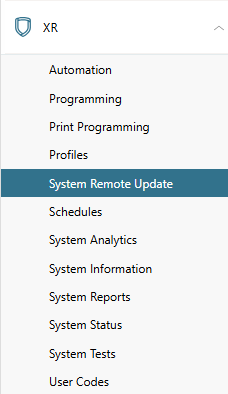
In the menu, select System Remote Update.
-
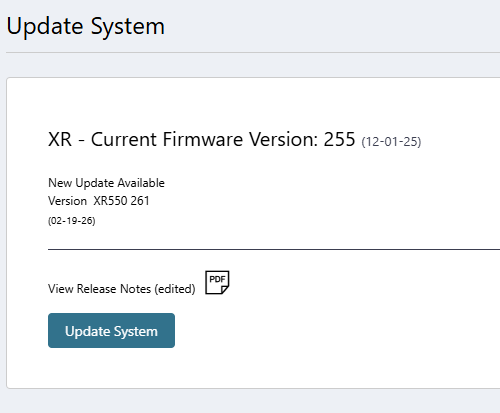
Select Update System to update the system to the most recent firmware.
-
A banner displays the progress of the update. If you navigate to another page, the remote update continues in the background. When the update is complete, the banner indicates whether the update succeeded or failed. If you receive an error message, go to System Remote Update Errors and Update Dashboard Errors for more information.
Perform a Bulk Update
A bulk update allows you to remotely update multiple systems at once. To perform a bulk update, complete the following steps:
-
Log in to Dealer Admin (dealer.securecomwireless.com).
-
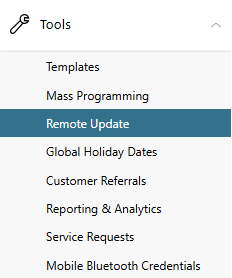
In the menu, go to Tools > Remote Update.
-
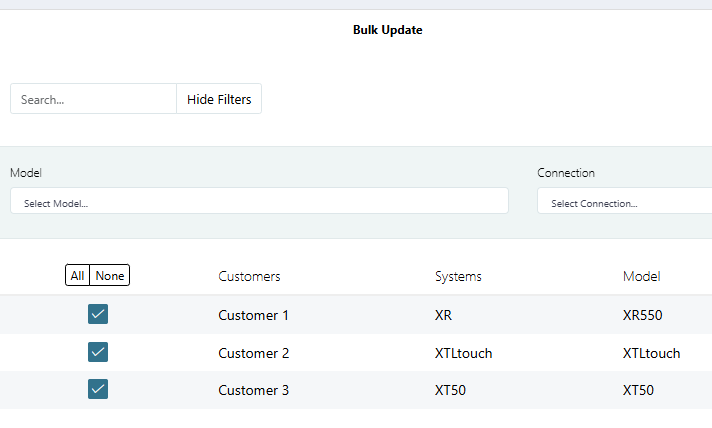
In Bulk Update, select All to update all systems or select the individual systems you want to update.
-
Select Update Selected Systems at the top of the screen. In Update Dashboard, you can view all attempted and completed remote updates, as well as their individual statuses.

Perform a Keypad Update
Note: Performing a keypad update on Dealer Admin is only available for 8860 7-inch Touchscreen Keypads. Refer to the 8860 Keypad Installation and Programming Guide for more information.
Before performing a keypad update, ensure the following prerequisites are met:
-
The system date and time are correct.
-
The keypad is connected to a system on Dealer Admin.
-
The keypad is addressed correctly and programmed in the system with the device number matching the address.
-
The keypad is programmed as a Keypad device type.
-
The keypad is connected to Wi-Fi.
To perform a keypad update on Dealer Admin, complete the following steps:
-
Log in to Dealer Admin (dealer.securecomwireless.com).
-
Go to Customers, then select the System Name associated with the keypad you want to update.
-
In the menu, go to select System Remote Update.
-
In Keypads, find the keypad you want to update, then select Update.
%20(1).png?cb=3f81edc682b3a929bdbb3dbb3fa187bc)
-
A banner indicates whether the keypad update request was successful. If successful, a banner displays the progress of the update. If you navigate to another page, the remote update continues in the background. When the update is complete, the banner indicates whether the update succeeded or failed.
System Remote Update Errors
Note: If any of the issues below persist, contact DMP Tech Support at 888-436-7832 or TechSupport@DMP.com from 7 a.m. - 7 p.m. CST.
If a firmware update fails on the System Remote Update page, one of the following messages display:
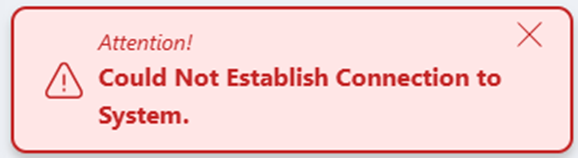
Could Not Establish Connection to System
The system did not connect during the update attempt. Go to Customers, then select the System Name. Select Test Connection to ensure the system can connect to Dealer Admin.
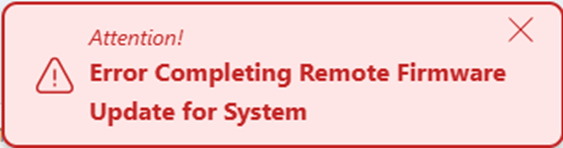
Error Completing Remote Firmware Update for System
There are several reasons why this might display. Go to Tools > Remote Update. In the Update Dashboard, find the system to see the specific reason why the update failed.
Update Dashboard Errors
To view the specific reasons why an update failed, go to Tools > Remote Update. In Update Dashboard, you can view all completed and ongoing updates. If an update failed, the following messages display:
|
Error |
Description |
Connection Reattempt |
|---|---|---|
|
Failed - Connection timed out |
The system disconnected during the update. |
Ensure the system can maintain a stable connection and reattempt. |
|
Failed - Could not establish connection to system |
The server was unable to connect to the system to begin the update. |
Ensure the system can connect to Dealer Admin and stay connected for the entire update process. |
|
Failed - system firmware version did not update |
The system did not update for one of the following reasons:
|
In System Information, select Test Connection and see if the firmware version updates. If it does not update, try updating the system again. |
|
Failed - Could not complete update |
The installed firmware already matches the update file. |
Verify the system firmware. The system may already be up to date and an update is not necessary. |
|
Failed - Error checking update status |
The server received an invalid response to a check on the update status. |
In System Information, select Test Connection. If the firmware is up to date, then the update succeeded. Otherwise, update the system again. |