Use this section to learn how to perform a system remote update on Remote Link.
You can use Remote Link to remotely update the following systems:
-
XT30/XT50 panels
-
XTLtouch and XTLplus panels
-
XR150/XR550 panels
-
Com Series Communicators
Refer to the following information:
Perform a System Remote Update
Before you begin updating, ensure the system has a valid network connection. Cell is not supported for remote updates using Remote Link.
Remote Link requires a public IP and port forwarding to reach a DMP panel from outside its network.
-
Use the site’s public IP address (not the panel’s local IP).
-
Forward TCP port 2001 (or the panel’s programmed port) in the router.
-
Point that port to the panel’s local IP address.
-
Connect in Remote Link using public IP + port.
Without the port forward, the router blocks the connection.
To perform a system remote update on Remote Link, complete the following steps:
-
Go to Remote Link.
-
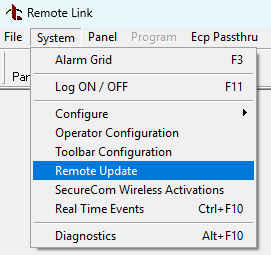
In the menu at the top of the screen, go to System > Remote Update.
-
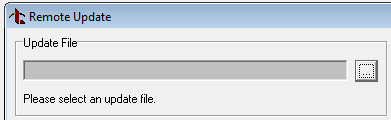
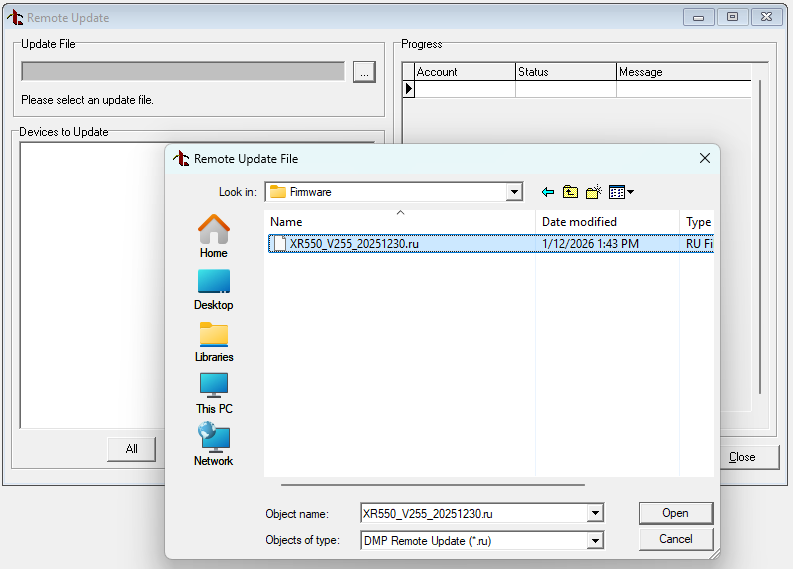
In Update File, select the More icon, then choose the update file.
-
In Devices to Update, a list of valid accounts populates for panels that match the file’s supported models. Find the panel you want to update and select the checkbox next to it.
.png?cb=558a12d690a1f00ded8a2d82afca0f4f)
-
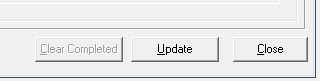
Select Update.
-
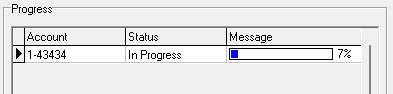
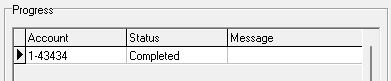
In Progress, the list of selected panels displays and shows the progress of the update, as well as whether it succeeds or fails.